

WordPress Codex Reference
Using the Post Editor
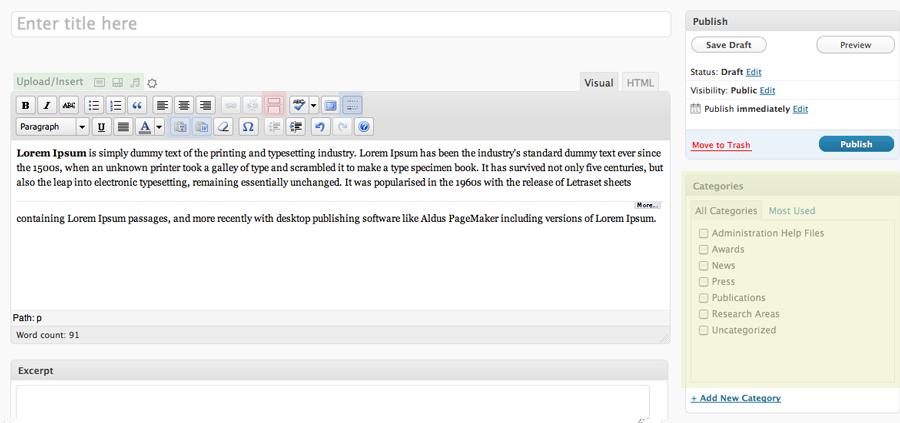
Below I have highlighted certain areas that will be of great use to editing the website.
Green – Upload/Insert Media
- The highlighted (from left to right) buttons are: Image upload, video upload, music file upload
- Clicking these will bring up a menu with self explanatory directions to upload and insert images
- For information please see http://codex.wordpress.org/Using_Images
Blue – Advanced Editing Menu (or “the kitchen sink”)
- The most important items in this drop-down menu are the “paste from Microsoft Word” and “paste from Text Editor”
- Clicking these will bring up a window allowing you to paste from the previously mentioned applications. This is very important because the styles applied in Word will not apply if pasted directly into the Post Editor.
- Be sure and use these buttons for pasting from Microsoft Word or a rich Text Editor
Red – “Read More”
- Some Pages (Research, News) will need a page break to activate the “read more” tag.
- Clicking this button, where ever the cursor is, will cause a … line to appear in the post editor and once updated will cause the “read more” tag to appear
Yellow – Categories
- If you are adding to “News” the post will not be inserted into the News Sidebar without applying the “News Category”
- To indicate where the post should go select from the corresponding category on the right (yellow in the screenshot below)
- This will cause the post to appear on that Page (note: Biography and Teaching are pages, not Categories, so to update those you would have to edit the Pages, which can be found on the right sidebar under “Pages“)
 Instructional Technological Services